Embroidery Screen
Embroidery
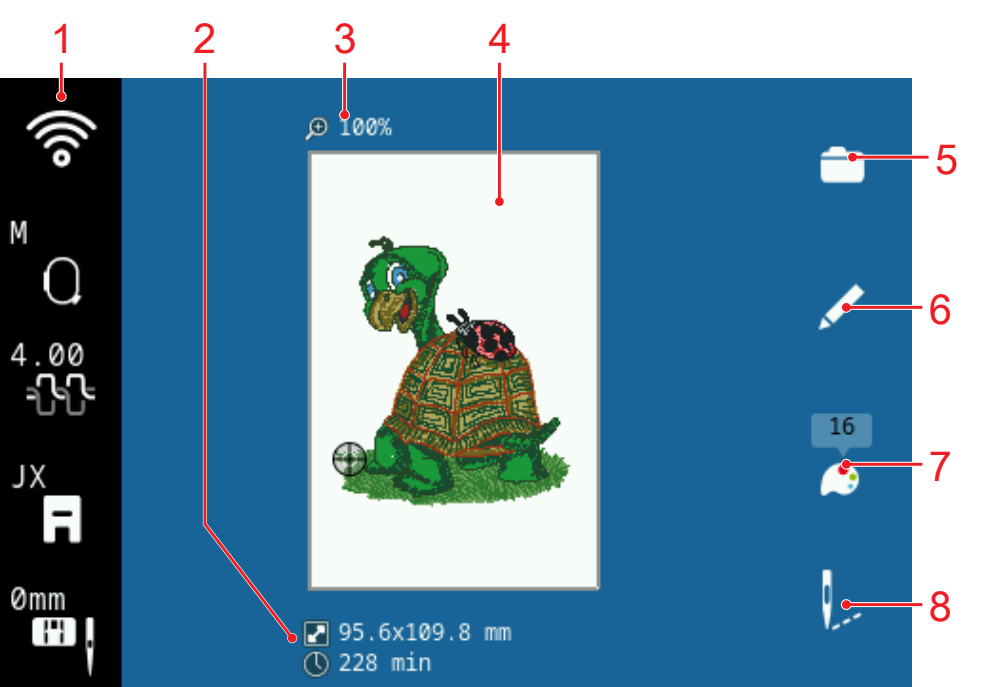
1 | Status Bar | 2 | Info Box |
3 | View Size (%) | 4 | Stitch Pattern Preview |
5 | File | 6 | Edit |
7 | Colors | 8 | Stitchout |
Info Box
In the Info Box, you can find the following information about the embroidery design:
- Embroidery Time
 : Estimated time required to stitchout the selected layer(s).
 - Embroidery Size
 : Overall width and height of selected layer(s).
Design Preview
The design preview shows a preview of the current embroidery designs in the attached or selected hoop.
File
Using the tab File you can load or add an embroidery design from the selection area or from the bernette StitchDirect app. You can save or delete an embroidery design in the folder Personal Folder
 or in the bernette StitchDirect app. Administering Embroidery Designs
Edit
Use the tab Edit to call up the embroidery screen and edit the embroidery design.
With the Edit function, you can show editing functions for the embroidery designs. Embroidery Design Editing
Colors
Use the tab Colors to display and change the colors and thread brands of the whole layer.
Tap the icon Number of Colors to display the number of colors used for the whole layer.
The following functions enable you to edit the thread brand and the color:
- Change Color
 : Modify the color and thread brand of the selected color. Changing the Colors
Stitchout
Via the tab Stitchout you can call up the window Stitchout Summary and the embroidering. Stitchout Summary
Move View
Embroidery ► Edit ► Zoom In/Zoom Out ► Move View
With the Move View function, you can move the embroidery design preview without changing the embroidery position.